
Base64 Image Encoding: A Web Developer's Complete Guide
Learn how Base64 image encoding works, when to use data URIs in HTML and CSS, and when to stick...
Read guideTurn a small image into a data URI you can paste straight into HTML, CSS or JSON, with no separate file and no extra request. Best for tiny icons. Runs in your browser, so nothing is uploaded.
Supports JPG, PNG, WEBP, GIF. Big files just take a moment longer.
Base64 Data URI Output:
Usage examples:
HTML: <img src="[paste output here]" alt="...">
CSS: background-image: url("[paste output here]");
JSON: "image": "[paste output here]"
Drop an image and copy the string. The screenshot is a real run: a small icon encoded, with its size shown against the original.
Icons, small logos and simple graphics are what this is for. The file is read and encoded on your device, and the tool shows the original size next to the Base64 length so you see the overhead.
Click Copy and paste the whole string, prefix included, into your HTML, CSS or JSON. There are usage examples right under the output so you paste it in the right shape.
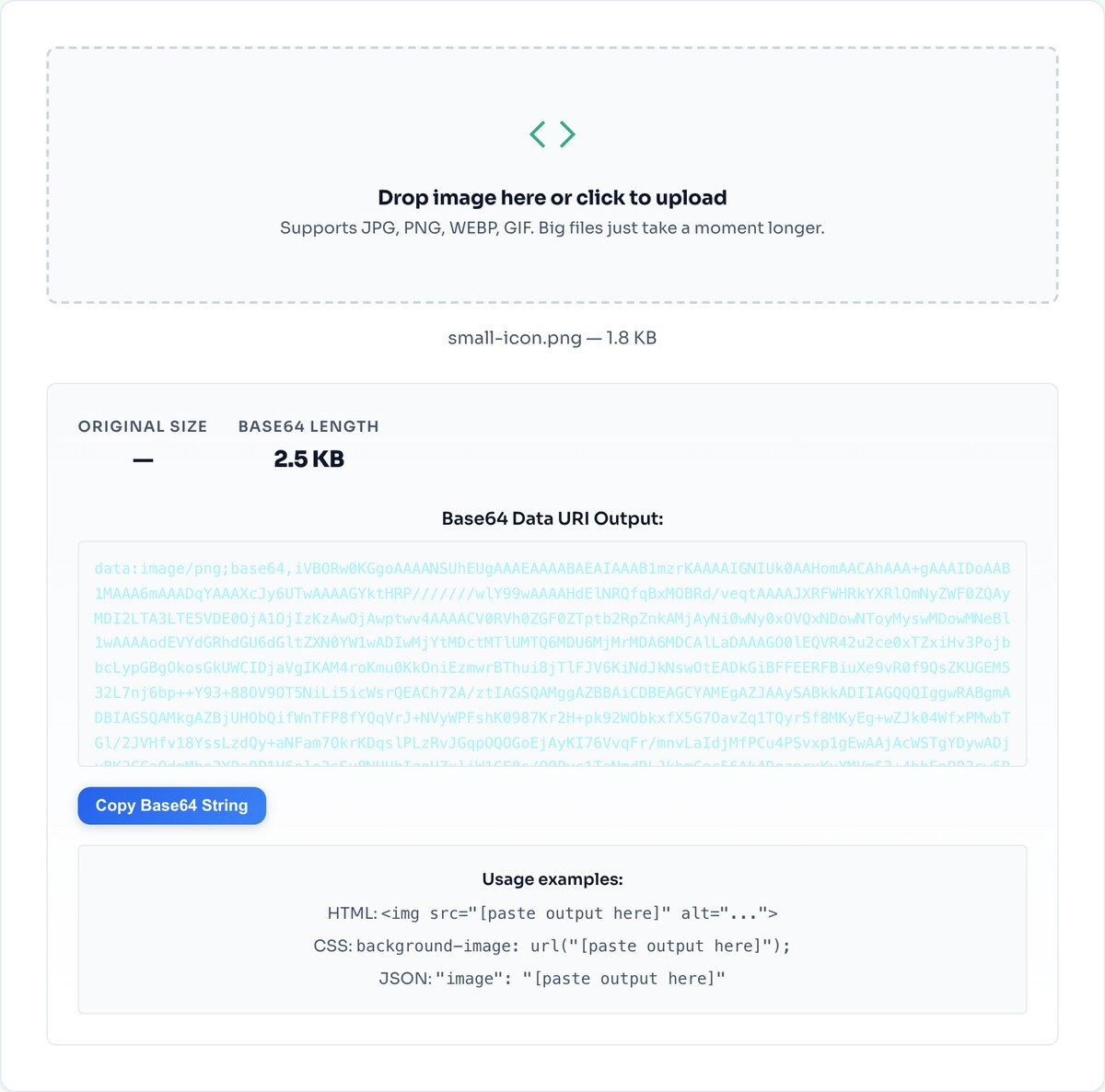
Base64 turns raw bytes into plain text so they can live inside code, and text costs more space than binary. The ratio is fixed at 4 to 3, so the string is always roughly 33 percent larger than the file. In our test a 1,883 byte PNG icon came out as a 2,534 character data URI, an increase of 33.4 percent.
That is fine for something tiny, but it is exactly why you should not encode a large photo. A 2 MB image becomes about 2.7 MB of text sitting in your HTML, which the browser cannot cache separately and has to re-download on every page.
Use it for tiny assets. A small icon, a bullet graphic, a 1px gradient tile: inlining these as Base64 saves a separate HTTP request, which can make a page load a touch faster because the browser does not fetch a second file.
Use it to embed in code or email. A data URI travels inside a single HTML or JSON file, handy for a self-contained template, an email signature, or config that must not reference external files.
Do not use it for anything large. Past a few KB the size overhead and the loss of caching outweigh the saved request. For real photos, keep them as normal files and compress them instead.
The 33 percent overhead is built into the encoding. If size matters, compress the image first, then encode the smaller result.
Encoding a large photo bloats your code and breaks browser caching. Keep big images as normal files; this is for small inline assets only.
The data:image/...;base64, prefix must be included when you paste. Copy the whole string, not just the letters after the comma, or the browser will not know how to decode it.
Base64 represents binary data as text, which costs about 33 percent more size. In our test a 1,883 byte icon became a 2,534 character data URI, a 33.4 percent increase. That overhead is inherent to the encoding.
Paste the whole string, including the data:image prefix, into an img src, like <img src="data:image/png;base64,iVBOR...">. That is the entire image inline, with no separate file.
No. Base64 suits tiny assets: an icon, a small logo, a 1px gradient, anything under a few KB. A big image as Base64 bloats your HTML or CSS and stops the browser caching the image on its own.
A way to put a small file directly inside HTML or CSS as text. The shape is data:[type];base64,[the encoded bytes], so the browser knows it is a PNG or JPG and decodes it inline.
Yes, with the Base64 to Image tool. Paste the data URI there and it decodes back to a downloadable file.
No. The file is read with the browser FileReader and encoded locally. Nothing is sent to a server, and it works offline once the page has loaded.
Go the other way: paste a data URI, get a file back.
Open toolShrink an image before encoding to keep the string small.
Open toolBuild proper icon files instead of inlining them.
Open toolCheck what a photo carries before inlining it.
Open toolConvert to PNG for a clean small source.
Open toolResize an icon down before encoding.
Open toolDrop a background before encoding a logo.
Open toolTrim to just the part you need to inline.
Open toolLearn how Base64 image encoding works, when to use data URIs in HTML and CSS, and when to stick...
Read guideMost image SEO advice is a list of thirty tips with no order to it. This is the sequence that...
Read guideA comprehensive comparison of JPG, PNG, and WEBP image formats. Learn when to use each format...
Read guideYour photo is 6 MB and the upload limit is 1 MB. Or your website takes seven seconds to load...
Read guide

