
Instagram Image Sizes Guide (2026): Every Dimension You Need
Instagram resizes, crops and recompresses everything you upload, so the dimensions you export...
Read guideDrag a crop box or lock it to a ratio for Instagram, YouTube, a thumbnail or an avatar. You can also type exact pixel coordinates. Nothing is uploaded and the pixels you keep are not re-compressed.
Supports JPG, PNG, WEBP. Big files just take a moment longer.
The screenshot is a real run: our 1280 by 863 photo locked to a 1:1 square, which crops to exactly 863 by 863.
The editor opens with a crop box over your photo. Drag the handles freely, or tap a preset ratio to lock the shape. Need a spec? Type the X, Y, width and height directly. The current selection size shows as you go.
Click Crop and the pixels inside your box are cut from the full-resolution original, not the scaled preview, so nothing softens. Download the result. Here the 1:1 preset on a 1280 by 863 photo produced a clean 863 by 863 square.
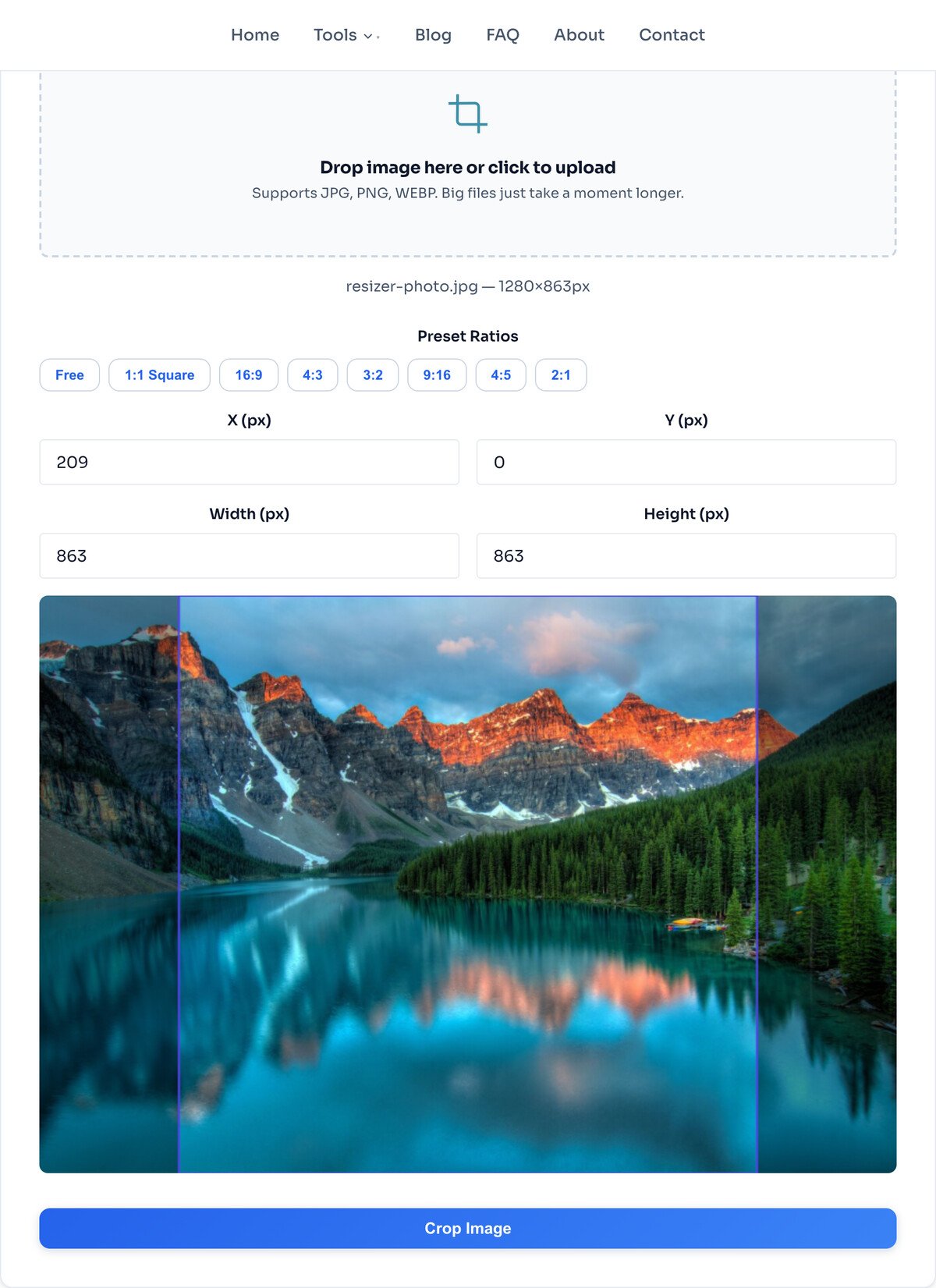
The shape decides where an image can go without the platform trimming it again. The presets cover the common ones:
For an odd shape with no preset, like a 2.7:1 Facebook cover, switch to Free mode and type the numbers. Cropping sets the shape, not the pixel count: for an exact size like 1080 wide, crop here first, then run the result through the Image Resizer.
A crop is subtraction: the pixels inside your box are kept exactly as they are, and everything outside is discarded. Nothing is scaled, interpolated or re-sampled, which is why a crop never softens the part of the photo you keep. Resizing is the opposite operation: it keeps the whole frame and recalculates every pixel to a new grid.
When a job needs both, crop first and resize second. Cropping first means the resize works on exactly the composition you chose, and one pass of scaling does less damage than cropping an already-resized image and scaling again. This editor shows a scaled preview to fit your screen, but the cut itself happens on the original pixels, so what you download is full resolution.
1:1 for a square post, 4:5 for a portrait post, which takes up more of the feed, and 9:16 for a story or reel. Tap the preset and the crop box locks to that shape, so whatever you frame inside it will fit without Instagram trimming it again.
Use the four number fields. X and Y set where the top-left corner of the crop starts, width and height set how much it takes. You can drag the box roughly first and then fine-tune the numbers, which is the fastest way to hit a spec exactly.
Leave the ratio on Free and type the proportions straight into the width and height fields, for example 2700 wide by 1000 tall. Facebook covers are the classic case: no preset anywhere offers 851 by 315, but the coordinate fields get you there in seconds.
The pixels you keep come through untouched. Cropping deletes everything outside the box and saves what is left without degrading it, so a sharp photo stays exactly as sharp. The one thing you do lose is pixel count: crop a 4000px photo down to a small corner and you have a small image now.
Yes, and it happens entirely on your device, so the uncropped original is never sent anywhere. One caution: cropping only removes what is outside the frame. To hide something inside the frame, like a name or account number, use the Blur and Pixelate tool instead, which destroys those pixels properly.
The editor scales the preview down to fit your screen, but the crop itself is calculated on the original pixels. Whatever you select is cut from the full-resolution image, not from the shrunken preview you drag on.
Set the exact pixel size after you have the shape.
Open toolCircle preview built for avatars specifically.
Open toolStraighten a sideways photo before you frame it.
Open toolMirror the shot if the subject faces the wrong way.
Open toolShrink the cropped file to an exact size like 100 KB.
Open toolHide what cropping cannot: things inside the frame.
Open toolStamp the finished crop before you post it.
Open toolSwitch the cropped result to JPG, PNG or WEBP.
Open toolInstagram resizes, crops and recompresses everything you upload, so the dimensions you export...
Read guideFacebook has more image slots than any platform, and several of them crop differently on phones...
Read guideYouTube renders the same thumbnail at 168 pixels in the sidebar and half a meter wide on a TV...
Read guideEvery platform wants a slightly different size, and getting it wrong crops your face off or...
Read guide

