
How to Redact and Blur Sensitive Information in Documents and Screenshots
Most people redact by drawing a box or smudging a blur over the part they want hidden. A...
Read guideDrag boxes over faces, license plates, addresses or screen contents and the pixels underneath are genuinely destroyed, not just hidden. The redacted image is safe to post. Nothing is uploaded.
JPG, PNG, WEBP, then drag to draw boxes over sensitive areas
Drop a photo, drag a box over a face, plate or document, and pick blur or pixelate. Below is a real redaction: a face pixelated into an unrecognizable mosaic.
Drag a rectangle over the part you want hidden: a face, a licence plate, an address, an ID number. Drag again for more areas, up to twenty per image.
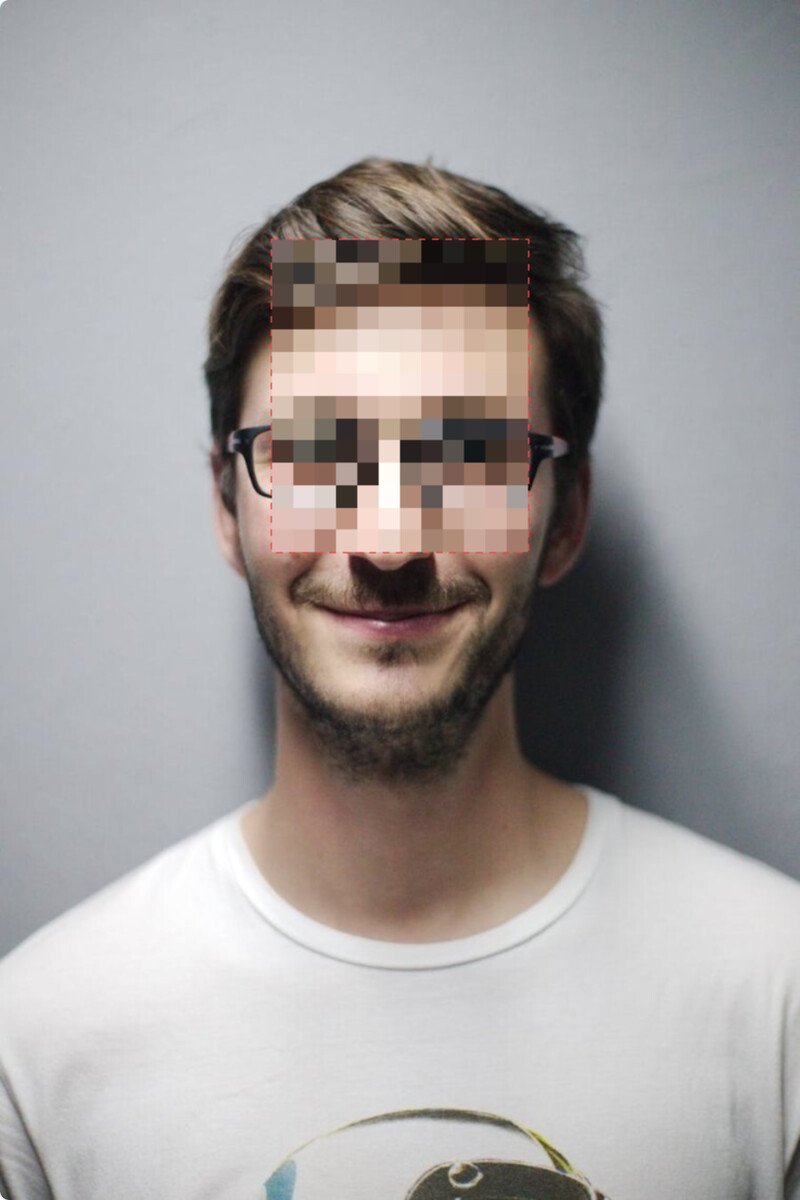
Pixelate at a large block size for real privacy. Set the strength high enough that the detail is unrecognizable, not just softened.
The tool rewrites the actual pixels in that region, so the original detail is not recoverable from the downloaded file. Nothing was uploaded to do it.
This matters more than people think, because a redaction that can be undone is worse than none, since it looks safe while leaking. Two honest points:
A light blur is not safe. Gentle blur keeps a lot of the underlying structure, and AI deblurring tools can partly reconstruct a face or text from it. If you are hiding something real, use pixelate at a large block size, or blur so heavily the area is a featureless smear.
The pixels are actually replaced. Unlike a CSS blur or a sticker in a phone app that only covers the pixels visually, this tool rewrites the region in the image data. The original is gone from the file you download, not just hidden from view.
You draw the box over what to hide. There is no automatic face or plate detection, which also means it never redacts the wrong thing.
Too light a blur or too small a block can leave enough to reconstruct. When something genuinely sensitive is at stake, go stronger than feels necessary.
Redacting a face does not remove the GPS or camera data in the file. Run the result through the compressor or check it with the metadata viewer if that matters.
Blur smooths pixels together so features become fuzzy. Pixelate replaces blocks with their average colour, a hard mosaic. For privacy, pixelate at a large block size is the safer choice, because a strong blur can sometimes be partly reconstructed by AI tools while a coarse mosaic genuinely throws the detail away.
Yes. The tool rewrites the actual pixels in that region, so the original detail is not recoverable from the file. That is different from a CSS or app blur that only hides the pixels visually while leaving them in the data.
Yes. Drag to draw a box, then drag again for the next one, up to 20 regions per image.
Enough that the face is an unrecognizable mosaic, not just soft. For a face filling roughly 200 pixels, a block size around 16 to 24 is a safe starting point. When in doubt, go stronger.
No. Everything runs in your browser. The original photo never leaves your device, and the redacted version is generated locally too.
Check and strip the hidden GPS and camera data too.
Open toolRe-encode to strip metadata and shrink the file.
Open toolCut out a sensitive area entirely instead of hiding it.
Open toolMark a redacted document as confidential.
Open toolStyle the photo after redacting it.
Open toolResize the redacted image for sharing.
Open toolChange the format of the redacted image.
Open toolConvert an iPhone photo before redacting it.
Open toolMost people redact by drawing a box or smudging a blur over the part they want hidden. A...
Read guideEvery photo contains hidden metadata. Learn what EXIF data is, what it reveals, why GPS...
Read guideYou drop a photo into a free online compressor, a bar fills up, and a smaller file comes back...
Read guideThe old trick of counting fingers barely works any more. AI images have gotten good enough that...
Read guide

