
The Anti-AI Photo Look: How to Add Film Grain in Your Browser
Feeds are full of flawless AI images, so the look everyone wants now is imperfection. Here is...
Read guideThirteen filters, each shown as a live thumbnail of your own photo so you choose by eye. Black and white, sepia, vintage, vivid, film grain and more, with an intensity slider to dial it down. Nothing is uploaded.
JPG, PNG, WEBP, then see all 13 filters as thumbnails
Drop a photo and every filter renders as a thumbnail of your actual image, so you choose by eye. Below is the full set of thirteen on a real photo.
The tool renders all thirteen filters as live previews of your own image. No guessing from names like a dropdown; you see exactly what each will do.
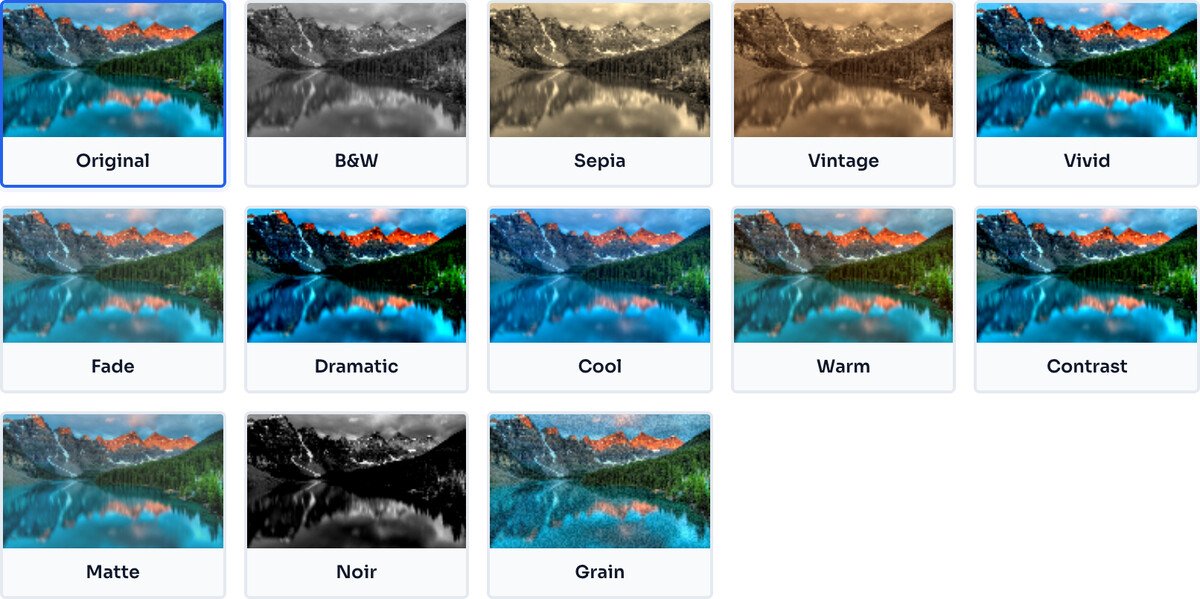
Click a filter to apply it full size, then use the intensity slider to blend it with the original from a subtle hint to the full effect.
Export the filtered image at full resolution. The original stays untouched until you download, so you can try looks freely.
Because the previews are live, the fastest way to work is to drop the photo, glance at the grid, and trust your eye.
To layer looks, like Fade then Grain, apply one, download, and load that result back in. There is no live stacking of two filters at once.
Filters recolour the whole image. They do not remove objects, retouch skin or change what is in the photo. For that you need a full editor.
Grain is random noise, which JPEG cannot compress well, so a grainy export may be larger than the original. Run it through the compressor if you need it smaller.
Thirteen: Original, black and white, sepia, vintage, vivid, fade, dramatic, cool, warm, contrast, matte, noir and a film-style grain. You see every one as a live thumbnail of your own photo, so you pick by eye, not by name.
Yes. The intensity slider blends the filter with your original from 0 to 100 percent, so you can get a hint of sepia or a full vintage look from the same filter. It updates the preview live.
Only as much as saving any edited image does. The filter is applied to full-resolution pixels and exported once, so there is no visible loss beyond the normal save. The original is untouched until you download.
One at a time. To layer looks, apply one, download, then load that result back in and apply the next. The Grain filter is the exception people reach for most, since it stacks naturally over a Fade or Matte.
Grain adds random noise, and random noise is hard for JPEG to compress, so a grainy export can be larger than the original. Run it through the compressor afterwards if you need it smaller.
No. The filters run in your browser on your own device through the Canvas API. Nothing is sent to a server, and it works offline once the page has loaded.
Shrink a filtered photo, especially after adding grain.
Open toolFrame the shot before you style it.
Open toolResize the styled photo for its destination.
Open toolHide a face or plate in the same photo.
Open toolPull the colours out of your filtered look.
Open toolSign the finished image.
Open toolCut out the subject of your styled photo.
Open toolChange the format of the styled photo.
Open toolFeeds are full of flawless AI images, so the look everyone wants now is imperfection. Here is...
Read guideBuyers decide whether to click a listing in about two seconds, and they decide on the first...
Read guideAction figures, MS Paint doodles, 90s camcorder shots: the AI trends in everyone's feed this...
Read guideMost image SEO advice is a list of thirty tips with no order to it. This is the sequence that...
Read guide

