
How to crop a photo well
Cropping is the cheapest edit you can make and the one most likely to decide whether a photo...
Read guideCombine images into one picture: drop in two photos and they appear side by side at the same height, ready to download. Stack them vertically or lay out a grid instead. Everything happens in your browser, so nothing is uploaded.
JPG, PNG, WEBP, GIF or AVIF. You can also paste a screenshot.
Tip Drag the thumbnails, or use the arrows, to change the order.
We put a landscape photo (1280 x 863) next to a portrait (720 x 1080) and ran both through this tool twice. Same two files, one setting changed.
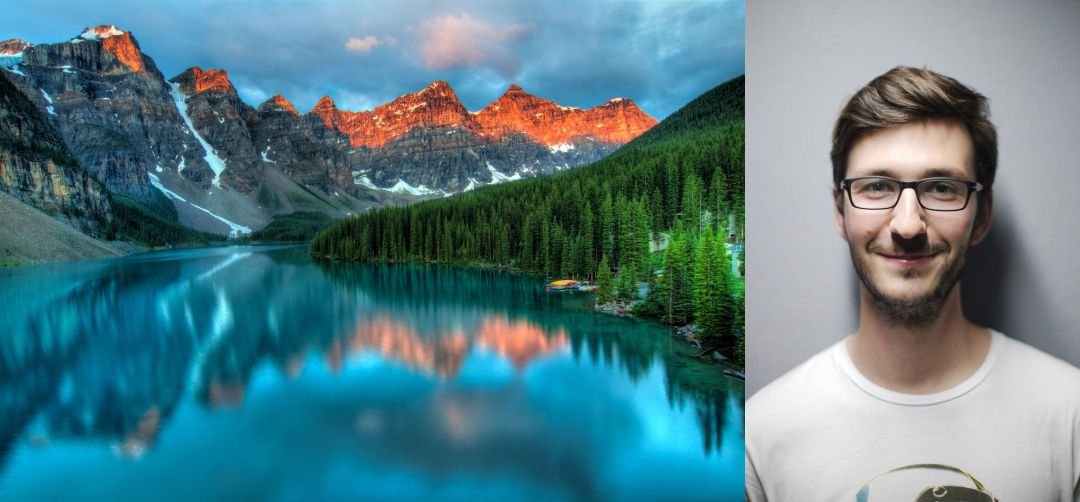
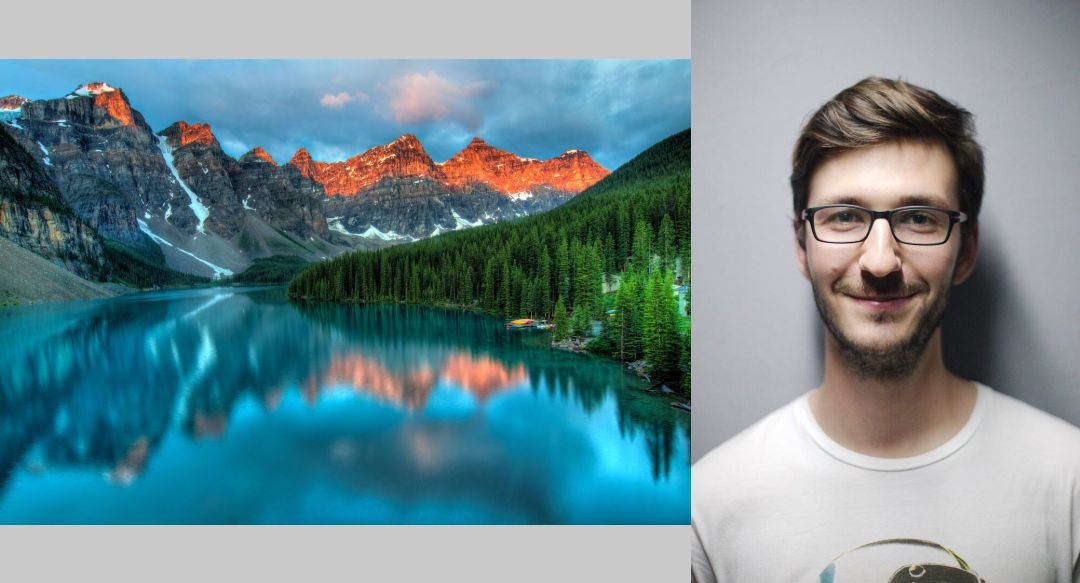
Both previews above are real downloads from this tool with Max size set to 1080 px and JPG quality 80, which is why they weigh only 79.4 KB and 78.8 KB. At full size and quality 90 the matched version is 355.1 KB.
A combined image is one rectangle. When two photos sit side by side, that rectangle has to be as tall as the taller photo, so a shorter photo leaves a strip of background above and below it. In the example above the landscape is 863 px tall and the portrait 1080 px, which leaves 217 px of empty space over the full width of the landscape.
Match heights scales every photo to one shared height before placing them, keeping each photo's own proportions. The portrait comes down from 720 x 1080 to 575 x 863, the landscape stays as it is, and the two fill the rectangle exactly. By default the tool scales to the smallest photo, so nothing is enlarged and nothing turns soft. Choose Scale to: Largest image if you would rather keep every pixel of the biggest photo and accept some enlargement of the others.
Stacked works the same way with widths instead of heights, and Grid matches widths so every column lines up. If you do want space around the photos, the Gap and Outer border settings add it on purpose, in the background color you pick.
A 1280 x 863 photo next to a 1100 x 741 crop of the same scene, side by side at matched height.
The PNG is about eight times bigger and looks the same on screen, because PNG stores every pixel exactly and photos are full of fine noise. Keep PNG for screenshots, graphics and transparent backgrounds. At original sizes the same pair makes a 2380 x 863 image of 502.1 KB, with 6.5 percent of it empty.
The landscape and portrait pair from the worked example, through each setting. JPG at quality 90, full size.
| Layout and sizing | Output | JPG size | Empty area |
|---|---|---|---|
| Side by side, match heights (smallest) | 1855 x 863 | 355.1 KB | 0% |
| Side by side, match heights (largest) | 2322 x 1080 | 440.6 KB | 0% |
| Side by side, original sizes | 2000 x 1080 | 370.3 KB | 12.9% |
| Stacked, match widths (smallest) | 720 x 1565 | 185.2 KB | 0% |
| Stacked, original sizes | 1280 x 1943 | 397.9 KB | 24.3% |
Matching to the largest photo makes a bigger file, but the extra pixels are enlarged copies of the portrait, not new detail. If the result is heavier than you need, set Max size here or run it through the Image Compressor afterwards.
An edit, a renovation, a haircut, a cleaned-up product shot. Put the original on the left and the result on the right at matched height, and add a 10 to 20 px gap so the eye sees two photos rather than one. Our crop example above is exactly this.
Front and back, two colors, the item and its packaging. A grid of two columns keeps four views tidy. If the shop wants square images, combine first, then fit the result with the Image Resizer.
A conversation or a long settings page that took three screenshots. Choose Stacked, paste them in with Ctrl+V or Cmd+V one after another, and save as PNG so the text stays crisp. Trim status bars first with Crop for a cleaner join.
The classic two-panel reaction: expectation and reality, this and that. Side by side or stacked, matched size, a white gap. Add your caption afterwards in a meme app, since this tool does not set text.
There are three layouts: a row, a column and an even grid. There are no templates, no freeform placement, no frames or stickers, and no mixed cell sizes. If you need a designed collage, use a design app.
No captions, no Before and After labels. If you want a mark on the finished image, the Add Watermark tool can stamp text on it afterwards.
Browsers cap how big a canvas can be. In desktop Chrome 157 we measured a canvas of 16,384 x 16,384 pixels working and one pixel larger each way failing. The tool keeps desktop output under 16,384 px on a side and 120 million pixels in total, and on phones and tablets under about 16.7 million pixels, the limit widely reported for Safari on iPhone and iPad. Anything bigger is scaled down to fit and you are told the size it was scaled to. Twelve 4000 x 3000 photos in a row came out at 16384 x 1024.
Photos are scaled, never cut. In a grid with landscape and portrait photos mixed, the landscape ones leave space in their cells. Crop them to the same shape first if you want a grid with no gaps.
The output is drawn fresh from pixels, so camera details, dates and GPS location from the originals are not carried over. It also cannot open HEIC files in most browsers; convert those with HEIC to JPG first.
Drop two or more images into the box at the top of this page. They appear side by side straight away, scaled to the same height, and the Download button saves them as one JPG. Switch to Stacked or Grid if you want a different arrangement, and drag the thumbnails to change the order.
Add both pictures and leave the layout on Side by side with Sizing set to Match heights. The taller picture is scaled down to the height of the shorter one, so the two sit edge to edge with no bars. Add a gap if you want a thin line between them.
Because the two pictures are different heights and Sizing is set to Keep original sizes. The canvas has to be as tall as the tallest picture, and the shorter one leaves empty space. In our landscape plus portrait test that space was 12.9 percent of the whole image. Choose Match heights and the bars go away.
Yes. Choose Stacked and the images are placed one above the other, matched to the same width. Two of our test photos stacked this way made a 720 x 1565 image. For long chat or page screenshots this is the layout you want; add a gap to keep each screenshot visually separate.
JPG for photos. Our before and after pair came out at 394.4 KB as a JPG at quality 90 and 3.13 MB as a PNG, about eight times larger, with no difference you could see on screen. Use PNG for screenshots with sharp text, or when you need a transparent background around rounded corners.
No. The images are drawn onto a canvas inside your browser tab and the finished file is created on your device. Nothing is sent to our server, and closing the tab clears everything.
That is a different job. This tool makes one picture. If you want several images as pages of one PDF document, use our Image to PDF tool, which keeps each image on its own page in the order you choose.
Several images as pages of one PDF instead of one picture.
Open toolTrim photos to the same shape before you combine them.
Open toolFit the combined image to an exact width and height.
Open toolStamp your name across the finished comparison.
Open toolThe reverse: cut one image into a grid or halves.
Open toolCropping is the cheapest edit you can make and the one most likely to decide whether a photo...
Read guideWrong page sizes, thick white borders and a forty megabyte document are not bad luck, they are...
Read guideInstagram resizes, crops and recompresses everything you upload, so the dimensions you export...
Read guide
