
The Complete Image Size Cheat Sheet for Every Platform (2026)
Every platform wants a slightly different size, and getting it wrong crops your face off or...
Read guideDrop a folder, pick one size, and every image is resized in one pass. Fit-within keeps each photo in proportion even when they are different shapes, and the whole set downloads as a single ZIP. Nothing is uploaded.
Every screenshot below is this exact tool resizing three real photos to fit 1000px wide.
Drag a batch of images onto the box, or click to select them together. Mix JPG, PNG, WEBP and GIF freely. They all load at once and stay on your device, with the total size shown.
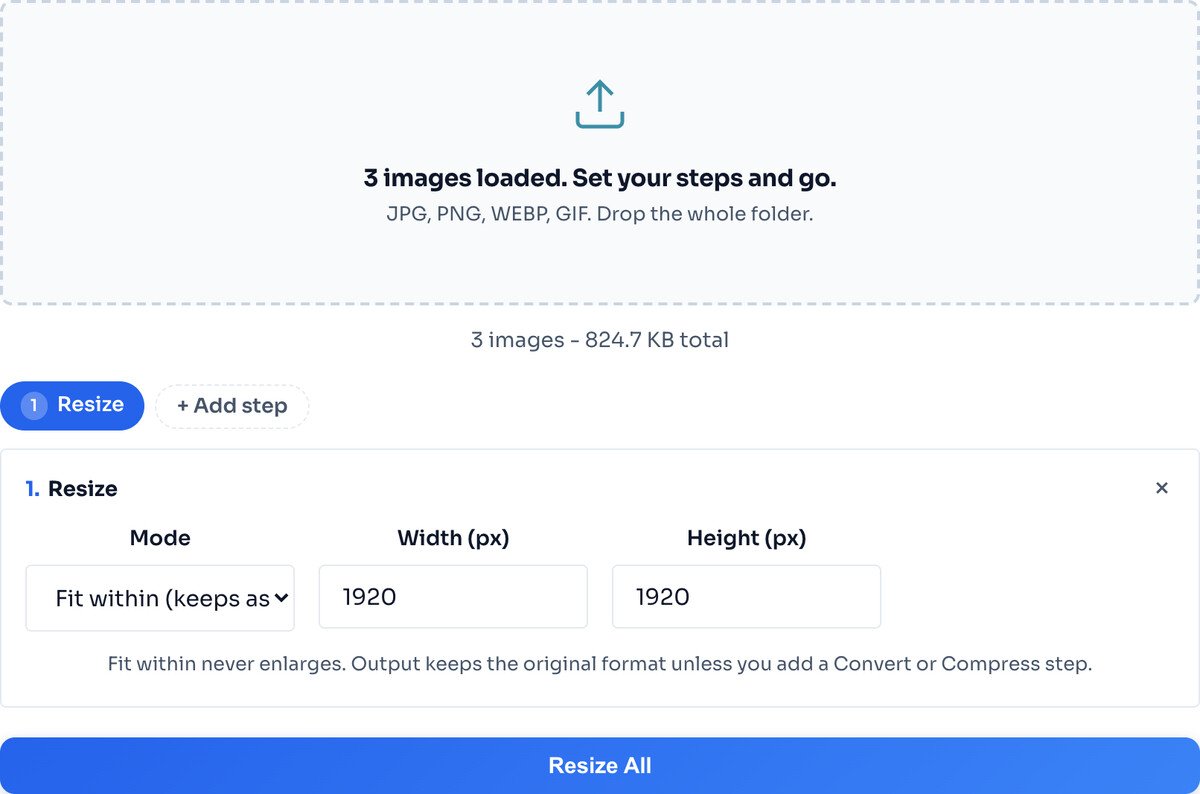
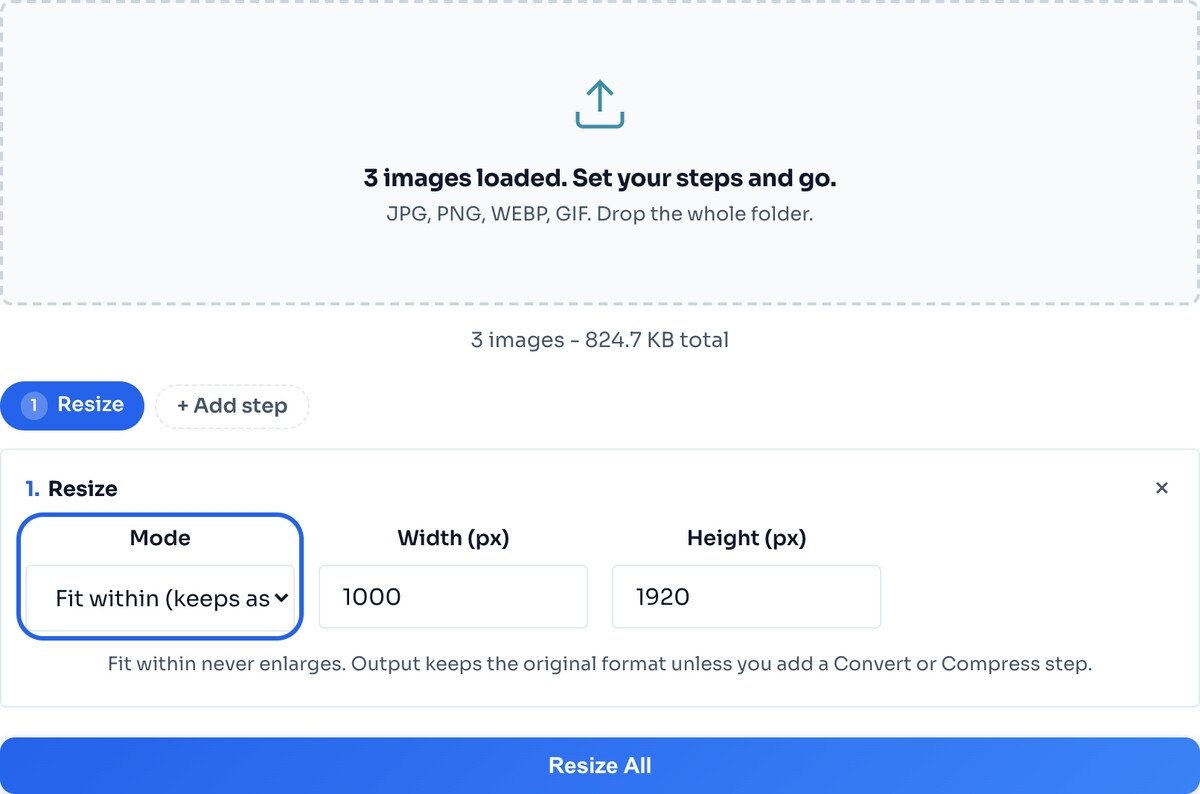
Give a width, and Fit within scales every image under it while keeping each one in proportion. Prefer identical dimensions for something like product photos? Switch to Exact size instead. The setting applies to the whole batch.
Click Resize All. Each image gets its own result row with the new dimensions and size, and a single Download All as ZIP button collects the batch. Individual downloads are there too.
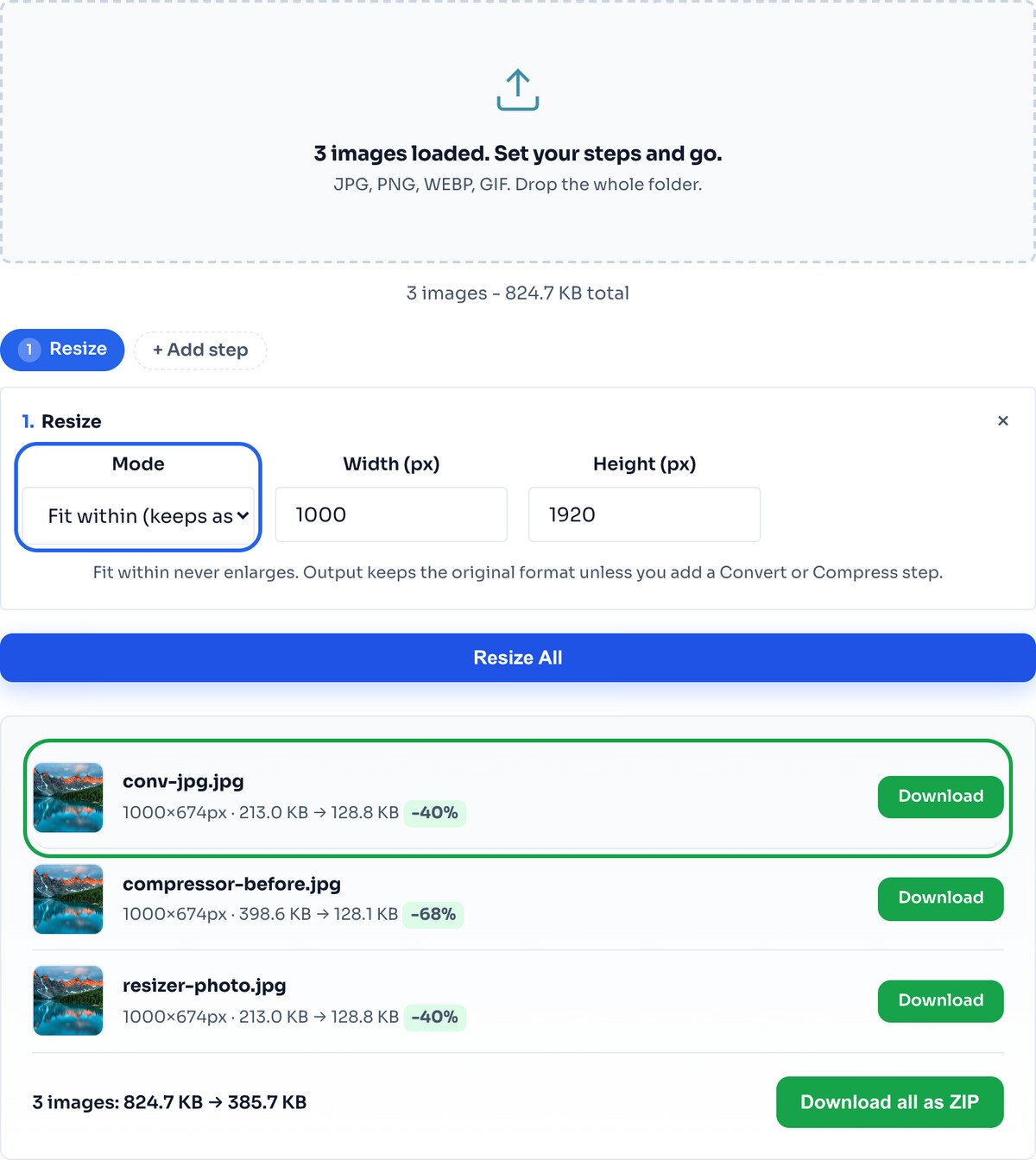
Fewer pixels means a lighter file even before compression. Fit within scaled every photo under 1000px wide while keeping its own shape, so nothing was stretched. Add a Compress step to also hit an exact size per image.
This is the decision that makes or breaks a batch resize, because the photos in a folder are rarely all the same shape.
Fit within gives a maximum box and scales each image under it while keeping its own proportions. A landscape photo and a portrait one both come out no larger than your limit, each still correctly shaped. It never enlarges, so small images are left alone. This is the safe default for a mixed folder.
Exact size forces every image to the same width and height. Perfect when you genuinely need uniform dimensions, like a grid of product thumbnails, but it will stretch any photo whose shape does not match. Use it only when all the images share a shape, or when uniform size matters more than proportion.
When in doubt, use Fit within. It is the one that cannot distort your pictures.
If an image is already smaller than your box, it is left at its size rather than blown up and softened. That is deliberate; to enlarge on purpose, use the Image Upscaler.
Forcing every photo to one width and height distorts any that do not share that shape. For a folder of different shapes, Fit within is the safe choice.
Fewer pixels shrink the file, but to hit an exact KB target per image, add a Compress step, or use the Bulk Image Compressor.
Add all your images at once by dragging them onto the upload box or selecting them together in the file picker. Pick a resize mode in the panel, by percentage, fit within a maximum size, or exact pixels, then click Resize All. Every image is processed together and you can download them as a single ZIP.
Yes. This tool does in one click what batch resizing in Photoshop requires actions or scripts for. There is nothing to install: drop your images, pick a size, and download. It runs entirely in your browser, so it works on Windows, Mac, Chromebook, and phones.
There is no fixed limit. Because everything runs locally in your browser, the practical limit is your device memory. Resizing dozens of photos at once is comfortable on a modern laptop or phone.
Choose the Exact size mode and enter the same width and height, for example 800 by 800. Every image in the batch comes out at exactly that size.
Yes. Click Add step and add a Convert step, and the whole batch is resized and converted to JPG, PNG, or WEBP in the same pass.
No. All resizing happens locally in your browser. Your images never leave your device, which makes this safe for private or client photos.
The single-image version, with all four resize modes.
Open toolCompress a whole folder to a target size and ZIP it.
Open toolHit an exact file size like 100 KB after resizing.
Open toolCrop to shape before an exact resize.
Open toolChange the format of the whole batch in one pass.
Open toolCrop round avatars from the resized images.
Open toolGoing the other way: enlarge smoothly up to 4x.
Open toolStamp a watermark once the batch is the right size.
Open toolEvery platform wants a slightly different size, and getting it wrong crops your face off or...
Read guideMost image SEO advice is a list of thirty tips with no order to it. This is the sequence that...
Read guideYour photo is 6 MB and the upload limit is 1 MB. Or your website takes seven seconds to load...
Read guideA comprehensive comparison of JPG, PNG, and WEBP image formats. Learn when to use each format...
Read guideMost stores are not choosing between image quality and page speed. They are serving a 3000px...
Read guide


